
Last updated: October 23, 2026
When university researchers routed every Google search of their study participants into AI Mode for a week, the share of searches that led to a click on an outside website fell by 18.8 percentage points compared with people whose Google was left as it was. That's from a preregistered field experiment with 1,100 US Chrome users, run in March 2026 and posted on August 18, 2026.
Being shown and being clicked are drifting apart in Google's AI features. That's why the Generative AI performance report in Search Console matters, and also why it's so easy to misread. It counts one thing only: how often links to your site were shown in AI Overviews and AI Mode.
My take: it's worth 20 minutes a month as a check on which pages Google's AI features are showing, and it doesn't belong on a revenue slide. The rest of this guide walks through the report screen by screen, then sorts the advice by your situation at the end.
What the report is, in one paragraph
Google launched the report for a subset of sites on June 3, 2026 and rolled it out to all websites worldwide on August 31, 2026. Per the help page, it sits with the other performance reports and covers two Search features: AI Overviews and AI Mode. Experiments in Search Labs are excluded. Discover has its own separate generative AI report, so don't go looking for Discover data here.
You won't find it in a search type menu. The first time, you open it from a banner at the top of the Performance page that reads "Get more details on your site's performance in generative AI features on Google Search." Click the "Open report" link in that banner. From then on it shows up as Generative AI under Performance in the left navigation. The page header reads Performance > Generative AI features, with a Beta badge next to it.
The chart has a single metric card, Total impressions. Google defines an impression here as "how many times links to your site were shown to a user in a generative AI feature on Google Search." There's no second metric hiding behind a toggle: no clicks card, no CTR card and no position card.
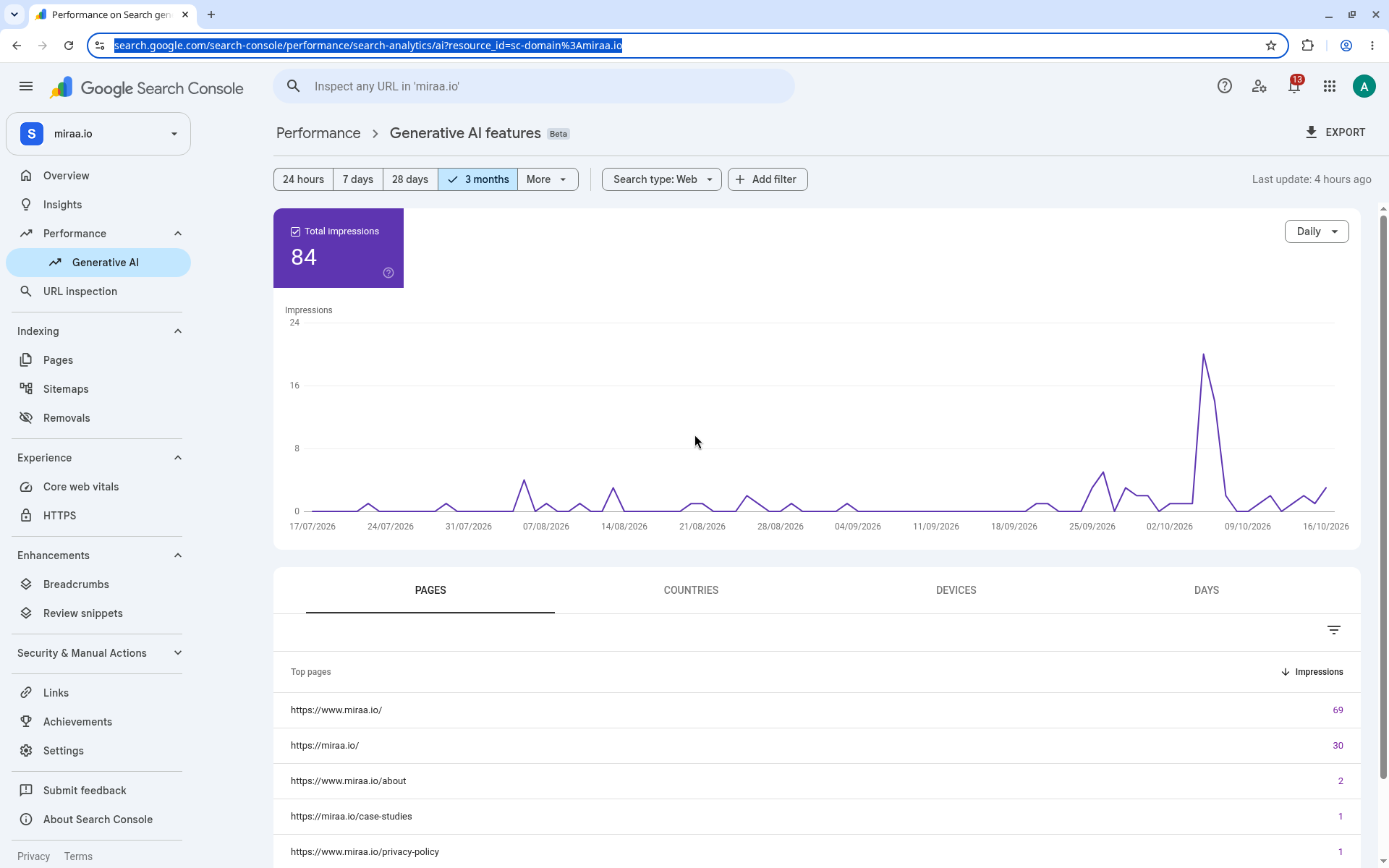
The Generative AI features report on our own miraa.io property. Total impressions is the only metric card.
How an impression gets counted
The report follows Search Console's standard impression rules, which Google documents in What are impressions, position, and clicks?. The short version:
A link generally counts when it appears on the current page of results, even if the user never scrolls to it.
Inside widgets that scroll or expand on their own, such as carousels, the link usually has to be scrolled into view or expanded to count.
Scrolling away and back during the same search doesn't add a second impression.
Two AI Mode rules change how you should read the numbers. Google treats a follow-up question in AI Mode as a new query, so a buyer who asks three questions in one conversation can produce three separate impressions for your site. And AI Mode uses the standard impression rules, so a link sitting in a carousel the user never swiped through may not count at all. Carousels and image blocks inside AI Mode also follow the usual position rules for those elements.
Keep that in mind before you call a number "reach." An impression here means your link was on screen in an AI answer. It doesn't mean the answer named your brand in its text, quoted you, or recommended you.
The four tabs and the search type filter
The table under the chart has four tabs: PAGES, COUNTRIES, DEVICES and DAYS. There's no QUERIES tab. Each tab has a quirk.
Tab | What it groups by | The quirk to remember |
|---|---|---|
PAGES | The final URL linked by the AI feature, after redirects | Most data is assigned to the canonical URL, not the duplicate a user actually saw |
COUNTRIES | Where the search came from | Aggregated by property, so totals line up with the chart |
DEVICES | Desktop, tablet or mobile | Available for Search; aggregated by property |
DAYS | Day, week or month, in Pacific Time | A late-evening spike in India or Europe can land on a different date than you expect |
The launch post also lists hourly granularity for dates. Treat hourly views as a way to spot logging problems, not as a trend line.
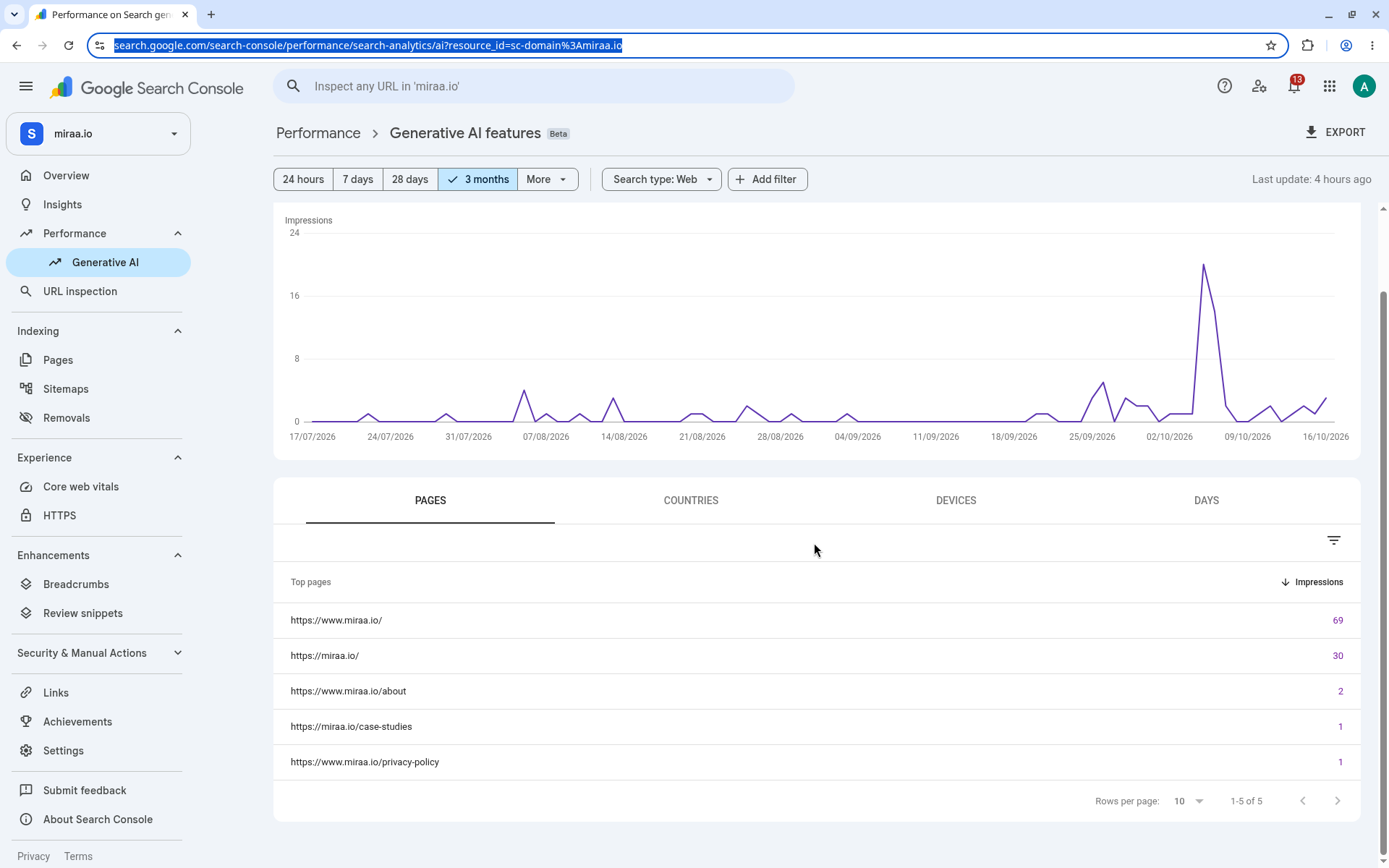
The PAGES tab lists top pages with an Impressions column and nothing else, so you can't see clicks or queries per page.
Above the chart sits a button labeled Search type: Web. Web is the only search type this report offers. Click the button and two options appear beneath Web: Text-based, for queries typed into the normal search bar, and Multimodal, marked New, for searches made with images through Google Lens, Circle to Search, uploaded images and Chrome image search. The help page writes these as "Web: text-based" and "Web: multimodal." Barry Schwartz, who covers search for an industry news site, pointed out on X in September that the multimodal filter works in this report too. For most B2B SaaS sites the multimodal slice will be tiny. If it isn't, look at which pages earn it, because product screenshots and diagrams may be doing work you didn't plan for.
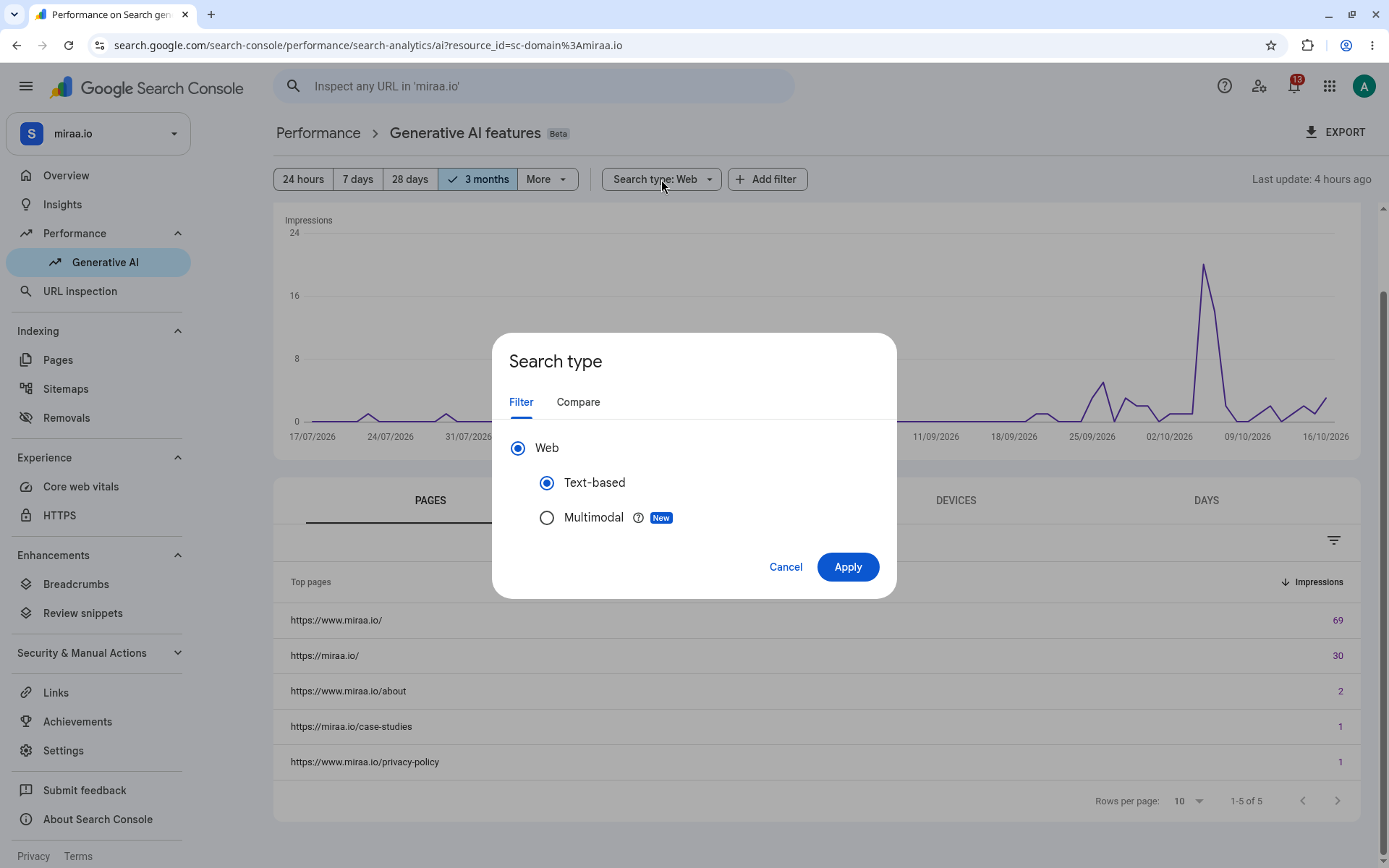
The Search type dialog. Web is the only search type, split into Text-based and Multimodal.
Why the chart and the table disagree
Sooner or later someone on your team will add up the page rows, compare the sum with the chart total, and ask which one is wrong. Neither is.
The chart aggregates by property. If two of your pages appear in the same AI answer, the chart counts one impression.
The table aggregates by page on the PAGES tab. In that same answer, each page gets its own impression, so the page rows add up to more than the chart.
When you add a URL filter, the chart switches to aggregating by URL.
The usual Search Console limits apply, including the 1,000-row cap on the table. Large sites will see only part of their page list.
One more export detail: values shown as "~" or "-" in the interface become zeros in the downloaded file. If you're averaging pages in a spreadsheet, those zeros will drag the average down for no real reason. Filter them out or flag them first.
What the report leaves out
This is the section to paste into your reporting notes. The Generative AI performance report doesn't show:
Clicks or click-through rate
Average position
A QUERIES tab, so you can't see which searches showed your links
A split between AI Overviews and AI Mode
Whether your brand was mentioned in the answer text
Clicks from AI features haven't vanished. Google's documentation says a click on an external link in AI Mode or an AI Overview counts as a click, and those clicks sit inside the regular Performance report under the Web search type, mixed with everything else. You just can't isolate them here.
Expect claims on social media that say otherwise. One post on X in July announced that the report "now shows clicks data," and another on October 17 said the report proves Google "quietly killed the click." The first conflicts with Google's help page, which lists impressions only. The second confuses a missing column with missing traffic.
The bigger trap is treating the report as extra. Google's launch post says this data "is included in the overall performance report," and the help page says the report draws on the Web search type. Your AI impressions are a subset of your Web impressions, already counted there. Never add them on top.
Five misreadings to avoid
Adding AI impressions to Web impressions for a "total visibility" figure. It double-counts every AI impression. If you want one comparison, use a ratio: AI impressions for a page divided by its Web impressions over the same dates.
Reading a rise in impressions as a rise in demand. Because AI Mode follow-ups count as new queries, longer conversations can lift impressions without a single new buyer. Pair the trend with clicks and leads from your other tools before you celebrate.
Comparing June or July with September as if it were growth. Most sites didn't have the report until the worldwide rollout on August 31, and early access went only to a subset of sites. Start your baseline in September.
Treating the dip from August 13 to 17 as a loss. Google's data anomalies page records a logging error that lowered impressions in this report for those dates, and says the missing data was restored on August 21. If an export you saved before then shows a dip, re-export it.
Summing page rows and calling it the property total. As covered above, page-level aggregation counts every page in an answer separately. Use the chart total for the property and the table for comparing pages with each other.
Annotate the dates that will bend your trend line
Search Console supports custom annotations of up to 120 characters, with a limit of 200 per property. Google's help page describes adding them by right-clicking the chart in the Performance report, and system annotations appear automatically for known data issues. Google doesn't say whether custom notes appear on the generative AI chart, so keep a short dated log next to your exports as well.
The dates worth marking for this report:
June 3, 2026: report launched for a subset of sites
August 13 to 17, 2026: logging error lowered impressions, data restored August 21
August 31, 2026: worldwide rollout of the report and of the Search generative AI control
September 24, 2026: start of Google's September spam update, per the Search Status Dashboard
October 15, 2026: Google announced higher and more frequent inline links in AI responses, plus a test of a dedicated section for official sites
Add your own site events too: a pricing page rewrite, a migration, a change to snippet settings. Those explain more swings than any Google update.
Check the Search generative AI control before blaming content
If the report is missing entirely, with no banner on the Performance page and no Generative AI item in the left navigation, Google gives two likely reasons. Either the site hasn't had enough impressions in generative AI features, or it has been excluded through the Search generative AI control.
To find it, open Settings in Search Console and choose Search generative AI. The screen gives you two options:
Include my site's links and content in Search generative AI features, marked Default
Exclude my site's links and content from Search generative AI features
Per the help page, a property that sits under a parent property also gets Inherit control from parent, and that becomes its default.
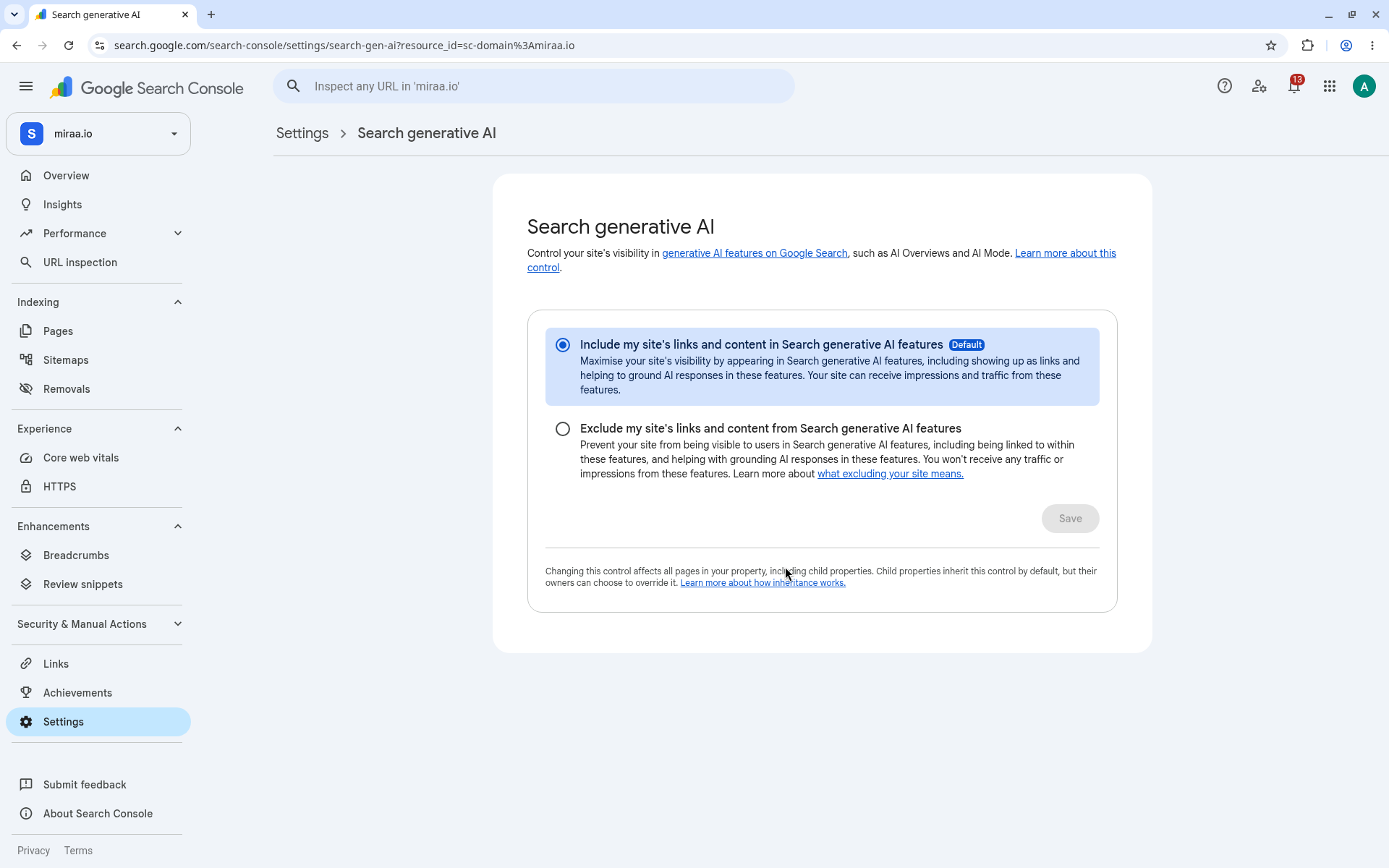
Settings > Search generative AI. Include is selected by default.
Excluding a site removes its links from AI Overviews, AI Mode and generative AI features in Discover, and stops its content from grounding AI responses. You'd also get zero impressions in this report. Google says the setting isn't a ranking signal for the rest of Search and doesn't govern AI training, which is handled by Google-Extended.
The inheritance rule is where B2B sites get caught. A docs subfolder or a blog set up as its own URL-prefix property follows its closest configured parent unless someone overrides it. If one team excluded a parent property, every child property inherits that choice. Owners of the top-level domain property see a notification when a child overrides the setting, so ask whoever owns that property to check it. Changes generally take a few days to apply, so don't judge the report the morning after a switch.
A 20-minute monthly reading routine
The routine below needs no extra tools:
Open the date filter above the chart, choose More, then Custom range, and set the start and end dates to the first and last day of last month. Confirm no dotted line is showing. Google marks preliminary data with a dotted line on the chart.
Note the Total impressions figure from the chart and compare it with the previous month and with September, your first clean month.
Open the PAGES tab and sort by Impressions. Write down the top ten and any page that entered or left the list.
For those ten pages, pull Web impressions and clicks from the main Performance report for the same dates and calculate the AI-to-Web impression ratio.
Check the COUNTRIES and DEVICES tabs only if your market is concentrated. Most of the time these just confirm what you already know.
Export, filter out the zeros that came from "~" and "-", and file the sheet with your dated log.
What to watch out for in the result: a page with a rising AI ratio and falling clicks in the main report deserves a closer look, because people may be getting what they need without visiting. A page that disappears from the list after a site change usually points to a technical cause, such as a snippet restriction, a redirect or a canonical moving to another URL.
How to use the report in your situation
If you report to leadership every month, show the AI-to-Web impression ratio for your top pages, not raw AI impressions. It survives the double-counting trap and it's easy to explain.
If the report is missing for your site, check the Search generative AI control first, then wait. Google says a missing report usually means too few impressions or an exclusion.
If you run docs, a blog or a help center as separate URL-prefix properties, open each one. The inheritance rule means one setting on a parent can quietly zero out a child.
If you're a large site, expect the 1,000-row cap to hide the long tail. Filter by folder (for example /docs/ or /pricing) and read each slice on its own.
If you're a small site with a few hundred AI impressions a month, don't read week-to-week moves at all. Compare full months and annotate every site change.
Where this report stops being useful
The report answers one question well: which of your pages Google's AI features are showing, and how often. It can't tell you which buyer questions you appear for, whether the answer recommended you, or what happened after someone saw your link.
For the first two, you need a fixed set of buyer prompts you check by hand or with a tool. Our guide on how to measure AI search visibility covers that method, and our comparison of AI visibility tracking tools helps if you want to automate it. For what happens after the visit, from first touch to closed deal, read our guide to B2B SEO attribution; this report deliberately stops before that point.
If you're still building the case for working on AI search at all, start with our pillar on answer engine optimization. And if you want to change what this report shows rather than only read it, the comparison of AEO vs SEO explains which parts of your existing SEO work carry over, and the guide on how to get cited in Google AI Mode shows what to change on your pages.